How to sync Shopify orders to monday.com without creating duplicates

João Silva
Pro Tips
When connecting Shopify to monday.com, a common use case is setting up an automated workflow to keep a live board of your orders. A challenge with this setup is ensuring that each Shopify order creates only one item on your board.
Duplicates can happen for several reasons: an order might be updated several times, a sync might be triggered twice, or Shopify might send multiple notifications for the same event.
This is a common problem, and it has a clean solution using monday.com workflows.
Why workflows, not automations
There are two ways to automate your boards on monday.com: automations, which use simple if-this-then-that sentences, and workflows, a newer and more powerful canvas where you can build multi-step logic with branching paths.
This is a case where workflows shine. The find-or-create pattern we'll set up requires a branching condition, something that isn't possible with a standard automation. If you haven't used the workflow canvas before, don't worry — it's intuitive once you've seen it in action, and the Shopify Connector integrates directly with it.
The find-or-create pattern
The key to avoiding duplicates is to tell your workflow to check whether an item already exists on your board before doing anything else. This is where the Find matching item action comes in.
After your trigger fires, you add a Find matching item action and configure it to look for an existing board item based on the Shopify order ID. The order ID is a good field to use here because it never changes, regardless of how many times the order is updated.
From there, your workflow branches into two paths. If a matching item is found, the workflow updates it with the latest order data. If no match is found, the workflow creates a new item.
Setting up the workflow
To build this in monday.com, open the workflow builder and add the Order created or updated trigger from the Shopify Connector. Then add a Find matching item action and map the order ID field as your matching condition.
From the Find matching item action, you'll see two branches: one for when a match is found, and one for when it isn't. On the match branch, add an action to update the existing item with the fields you want to keep current, such as order status, fulfillment status, or total price. On the no-match branch, add a create item action to add the order to your board for the first time.
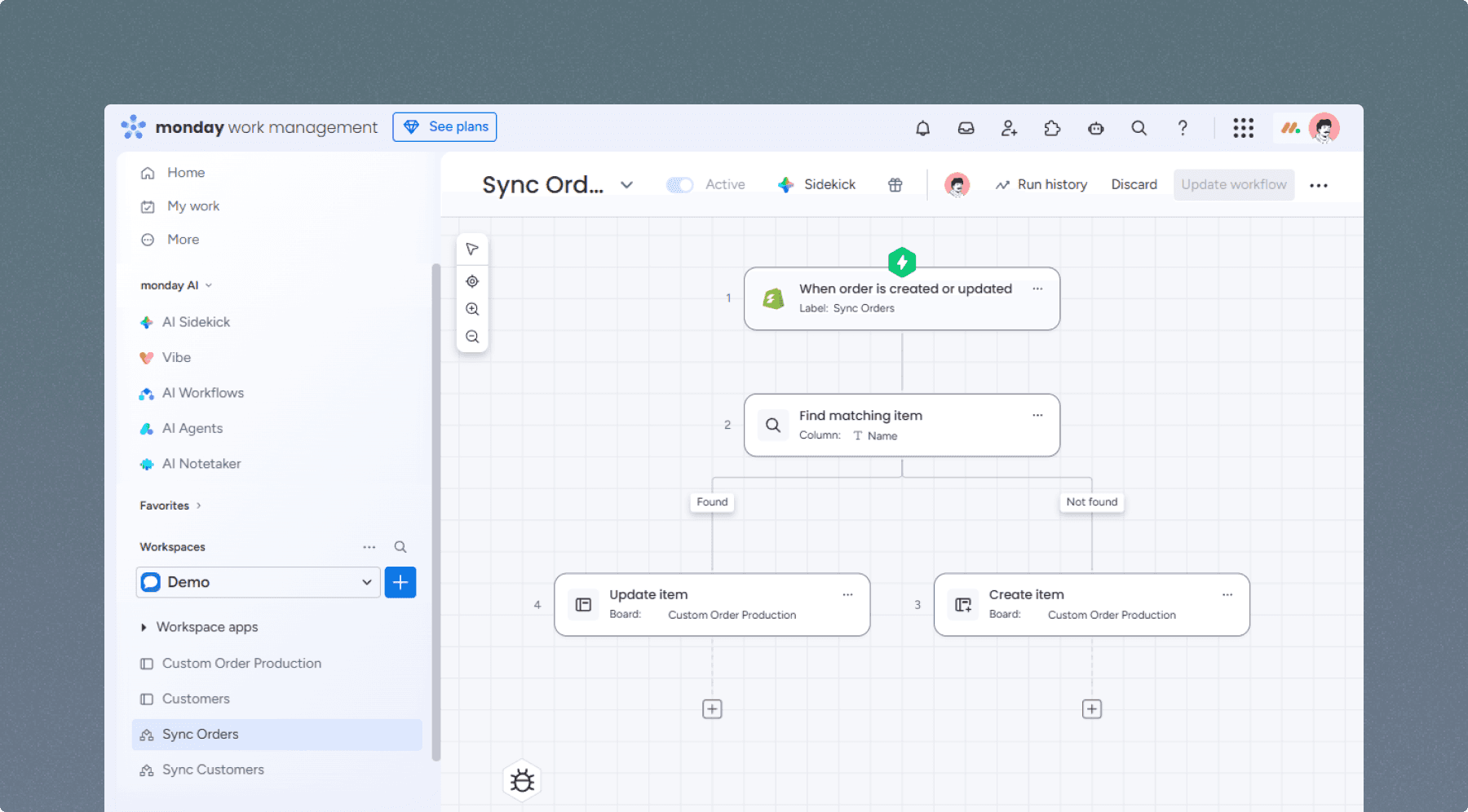
The completed workflow: an Order created or updated trigger feeding into a Find matching item action, with separate branches for updating an existing item and creating a new one.
Once the workflow is active, every order event from your store will flow through this logic automatically.
Why this works reliably
The find-or-create pattern works because the order ID gives you a stable, unique reference point for every order. As long as you match on a field that doesn't change, mondya.com can always tell whether it's dealing with a new order or an existing one, and act accordingly.
The result is a board that reflects the current state of your orders in real time, without any manual cleanup.
Shopify Connector for monday.com is available on the monday.com marketplace. If you need help setting up this workflow for your specific operation, book a demo and we'll walk you through it.
Go back to blog
Find out how much more you can do with tools you already use
Book a demo and we’ll show you exactly how our apps fit into your existing Shopify or monday.com setup.
Book a demo
Explore all apps