How to audit and manage your Shopify to monday.com connections from the Shopify admin

João Silva
Pro Tips
When you set up automations using the Shopify Connector for monday.com, each workflow creates an active connection between your Shopify store and a monday.com account. Over time, as you build, test, and iterate on your workflows, it's easy to lose track of which connections are still active and which monday.com accounts have access to your store data.
The Shopify Connector gives you a way to see and manage all of that directly from your Shopify admin.
Why this matters
Every active trigger represents a live connection between your store and a monday.com workspace. If you've been testing workflows, switched workspaces, or had team members set up automations independently, you may have more active connections than you realize.
Being able to see and clean up those connections isn't just good hygiene. It's an important part of making sure only the accounts that should have access to your store data actually do.
Viewing your active triggers
To see all active connections, open your Shopify admin and navigate to Apps and then Shopify Connector. You'll see a table listing every active trigger currently connected to your store.
Use the Label column to identify which workflow each trigger belongs to. This is particularly useful if you have multiple triggers across different monday.com workspaces, or if you want to confirm that a specific workflow is still running as expected.
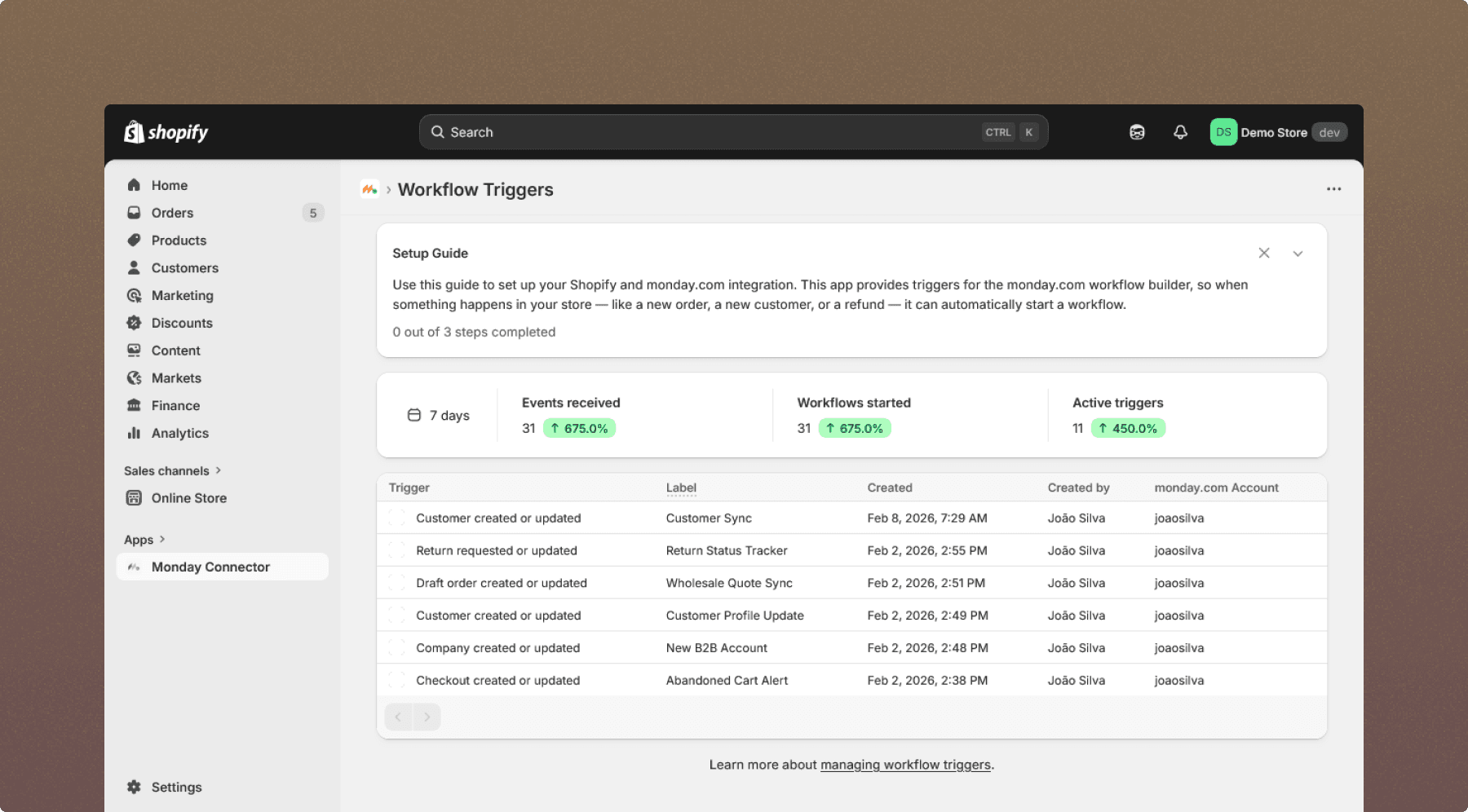
The active triggers table in the Shopify admin, showing all live connections between your store and monday.com with their associated workflow labels.
Deleting a trigger
If you find a connection you no longer need, don't recognize, or want to revoke, you can delete it directly from the same table. Locate the trigger, click Delete, and confirm the deletion.
One thing worth knowing before you do: deleting a trigger immediately stops the associated monday.com workflow from receiving data. Make sure you're certain the trigger is no longer in use before you delete it, especially in a live production environment.
When to do this
A good rule of thumb is to audit your active triggers any time you make significant changes to your workflow setup, offboard a team member who had access to your monday.com workspace, or notice unexpected behavior in your automations. It's also worth checking periodically as a general security practice, especially if multiple people in your organization are building workflows.
Shopify Connector for monday.com is available on the monday.com marketplace. If you run into any issues or have questions about managing your triggers, don't hesitate to get in touch.
Go back to blog
Find out how much more you can do with tools you already use
Book a demo and we’ll show you exactly how our apps fit into your existing Shopify or monday.com setup.
Book a demo
Explore all apps